This comprehensive guide will detail everything you need to know regarding the use and reservation of conference rooms that use Neat. The article covers basic functionality related to screen sharing and starting a web conferencing meeting.
For more information on how to use Neat, please visit their Controller Guide.
Booking a Meeting
To book a meeting for the Large conference room please refer to this guide.
Screen Sharing
There are multiple ways to screen share to the display. It is strongly recommended to connect directly via HDMI to minimize playback delay. Screen sharing can be done with or without an active web conferencing meeting.
Connecting Directly via HDMI:
- Connect the HDMI cord (using USB-C adapter is optional) to your device. Screen sharing should start automatically but if not, select Screen Share.
Wireless Screen Sharing
Alternatively, you can share content wirelessly. This is NOT recommended if the content being shared includes any videos. You may experience higher levels of playback delay.
- Click Share Content on the Tabletop Device.
- Instructions for how to connect via the Zoom app or from a web browser will appear on screen with the code needed to start sharing. It is recommended to share screen wirelessly through the Zoom App directly.
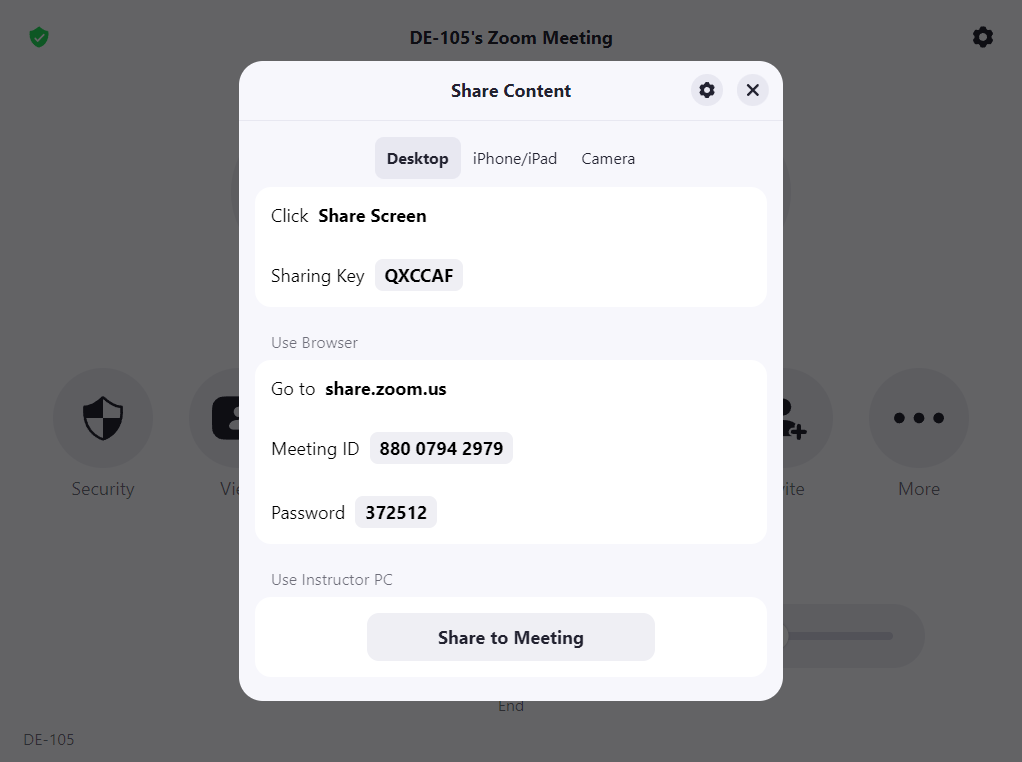
- Input the Sharing Key into your Zoom application to begin.
Zoom Web Conferencing
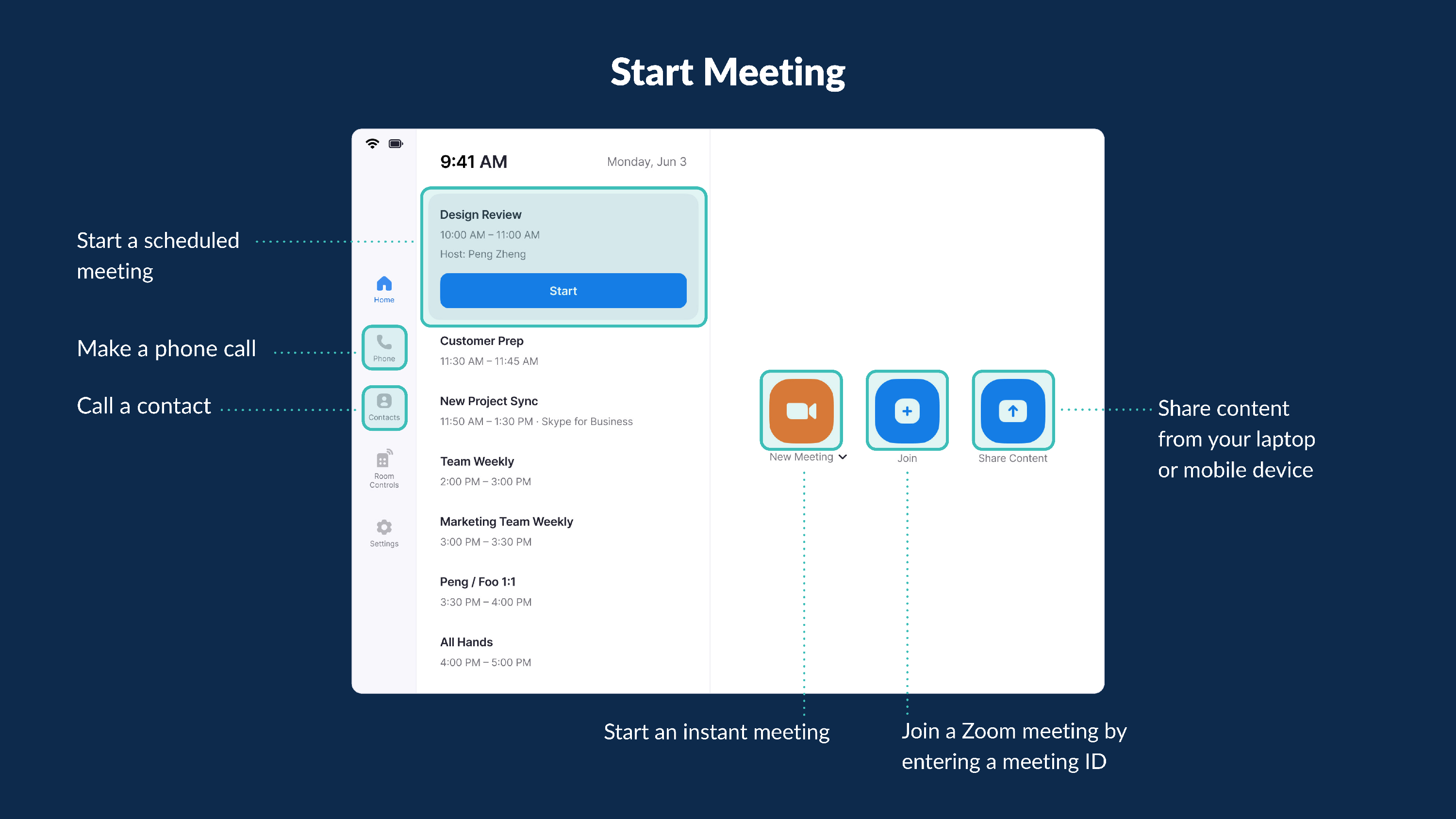
***Note: If a Zoom meeting was scheduled in advance as part of the Google event, a computer connected via the adapter is NOT necessary to start the meeting (unless you would like to screen share). Simply select "Start" from the Tabletop Device to begin the Zoom meeting.
Starting the Meeting:
You must include a Zoom Meeting as part of the Google Calendar event in order to start a scheduled meeting. Please refer to the guide below.
Meeting Controls:
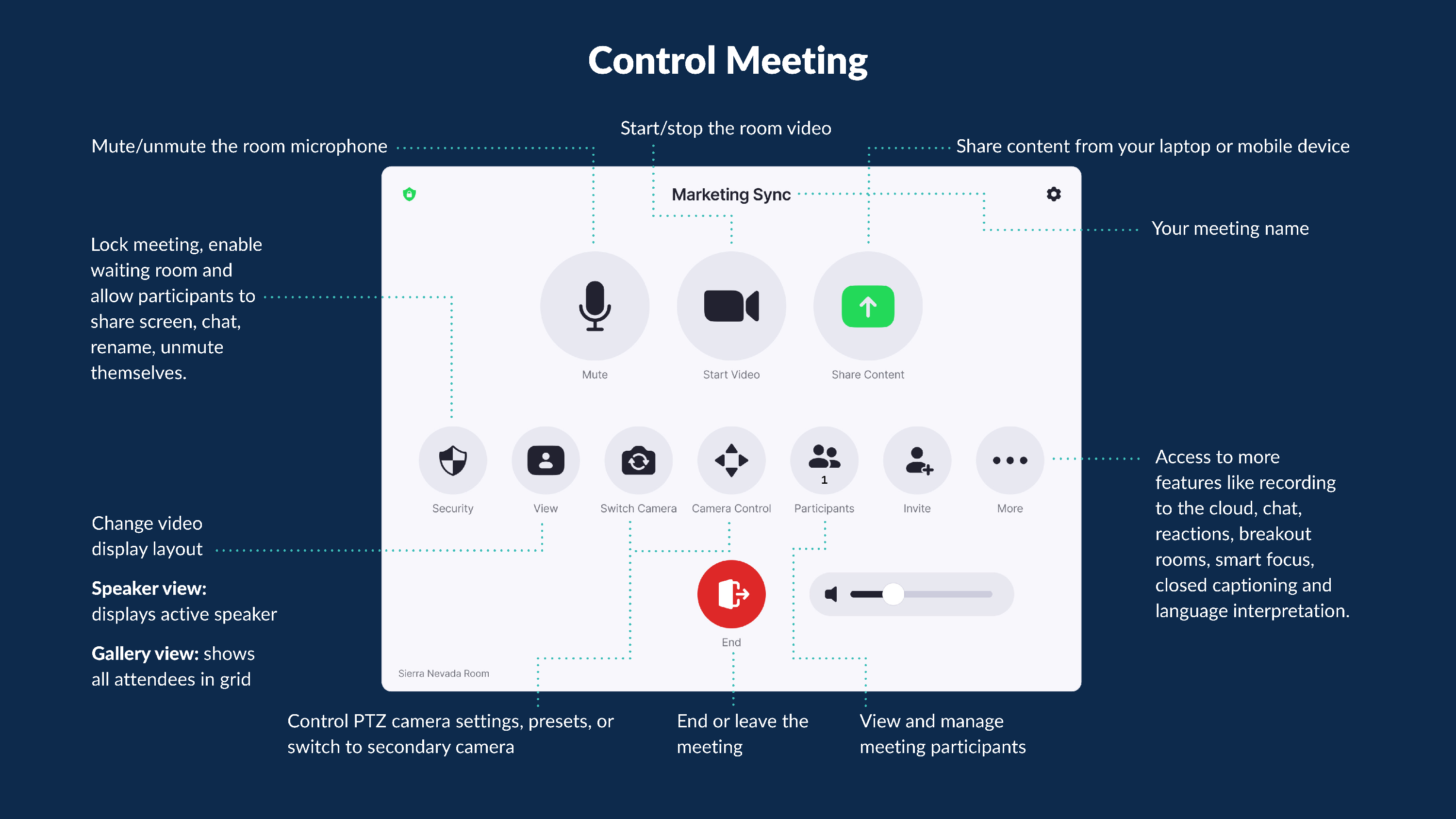
Please refer to the guide below. The general principle is that the controls are no different than if you were hosting a Zoom on your personal computer. The controls are now on a different device as opposed to your computer in this design.