This article covers how a Maryland Athletics Employee can resolve password sync issues on a UMD-issued Mac after changing their Directory ID password, including steps for Self Service syncing.
Overview:
If your Mac shows “Password out of sync”, or your local Mac password is not being accepted after a Directory ID password change, follow these steps to re-sync the account.
Before you start:
- Ensure you know your new UMD password and your old one is stored somewhere accessible.
STEP 1 — Locate Self Service
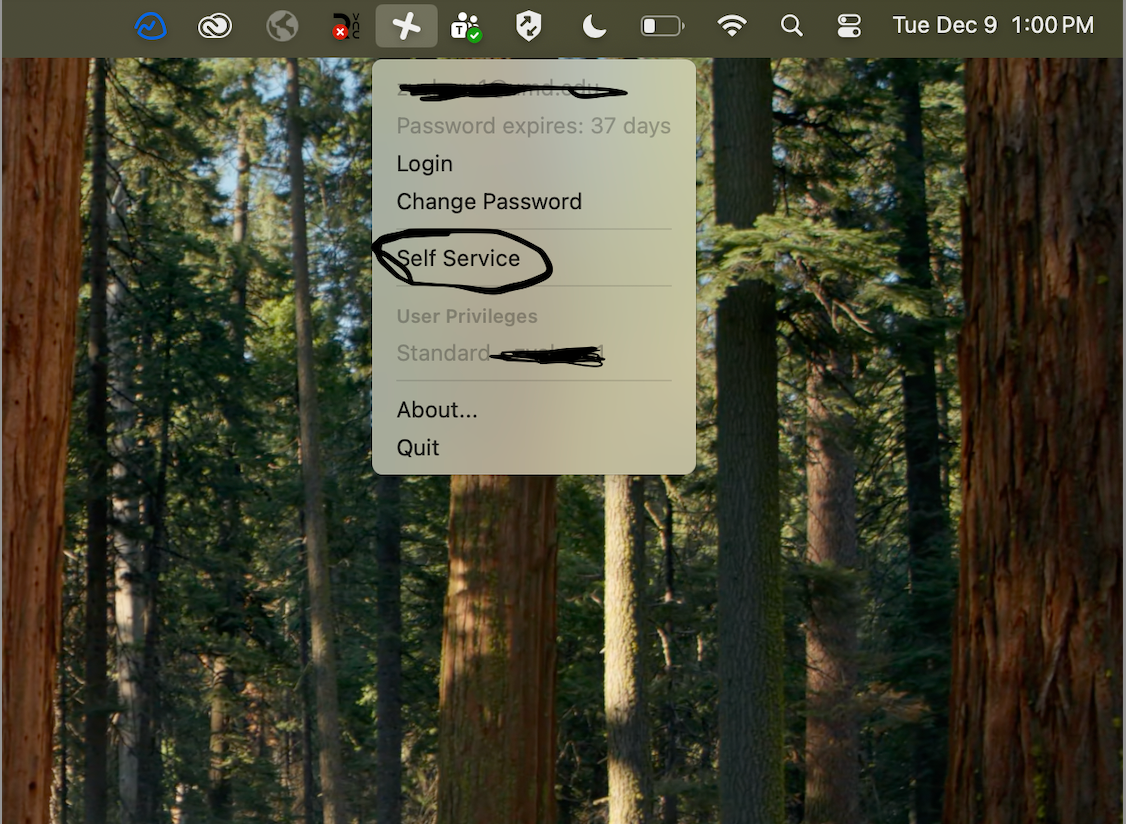
At the top of your screen, click the JAMF Connect icon and select Self Service.
STEP 2 - Checking password sync status
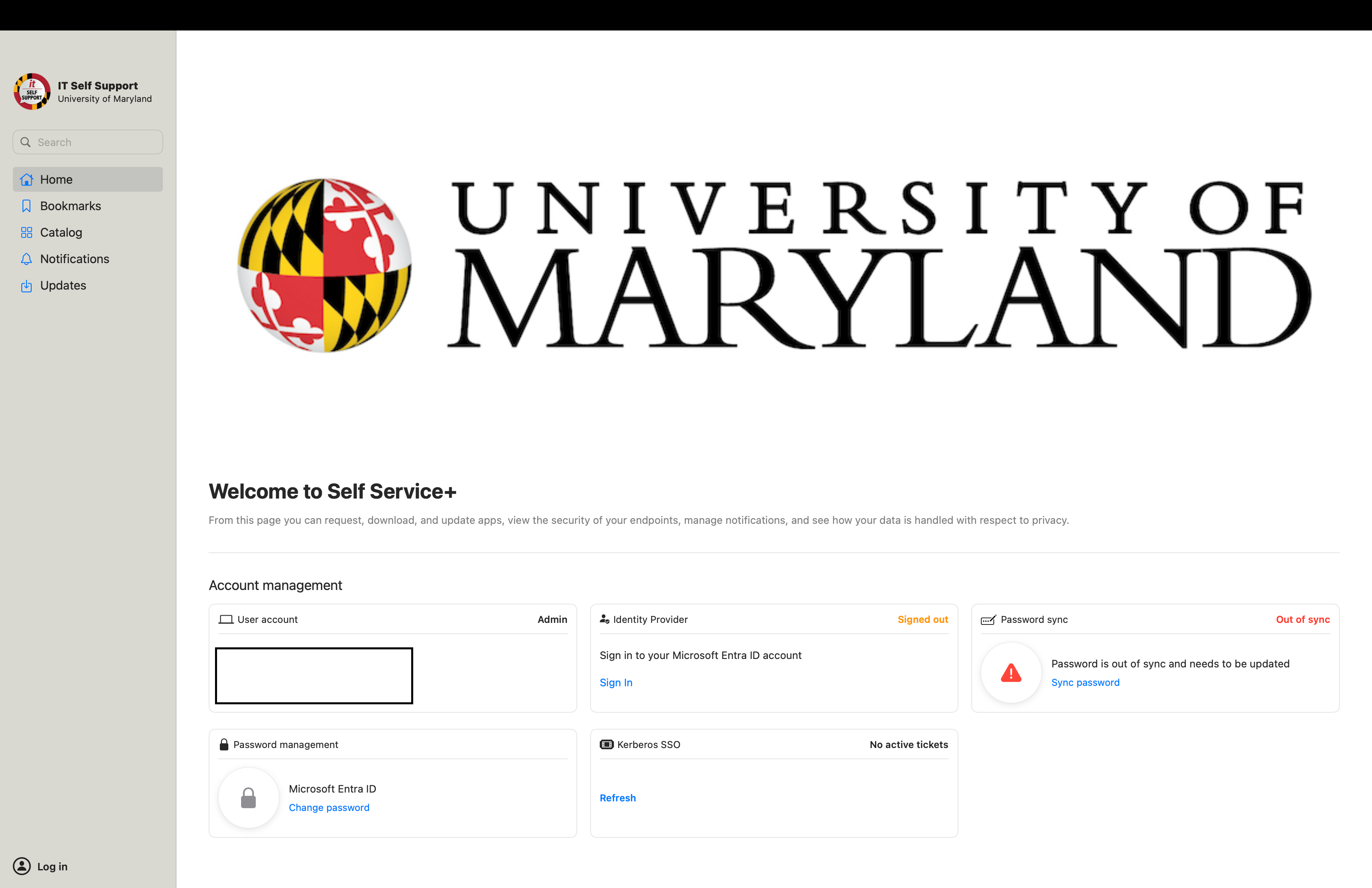
In Self Service, under the Home tab, look for the Password Sync panel.
If the panel shows a red warning such as:
- “Password is out of sync and needs to be updated”
- “Out of sync”
Press Sync Password.
STEP 3 - Run JAMF Connect Reset / Sync
- After clicking Sync password, a JAMF Connect dialog will open.
- When prompted, sign in with your Directory ID and new UMD password.
- Follow any on-screen prompts until the process finishes.
If asked to confirm or re-enter your password, use the same new password.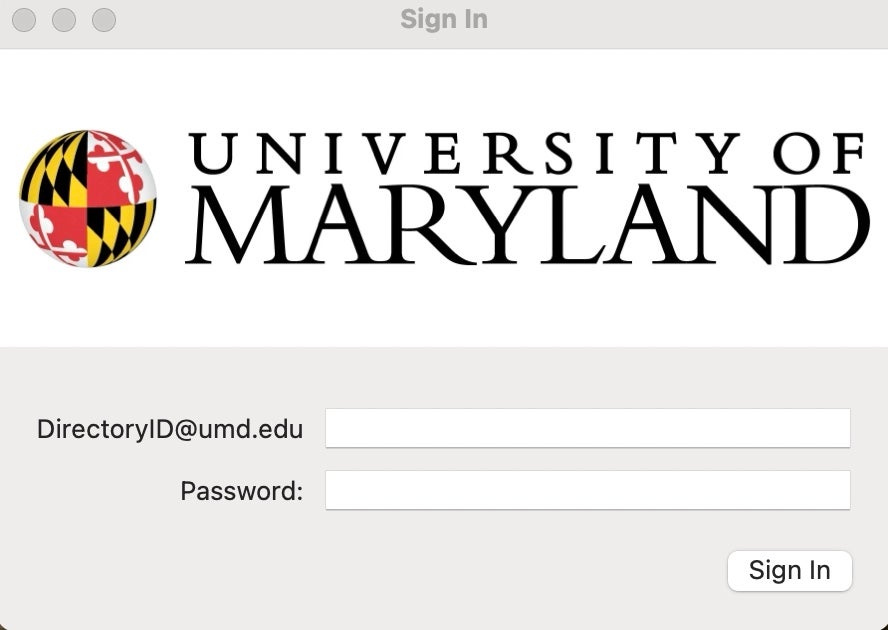
STEP 4 - Ensuring the Sync was successful
- When the sync completes, return to the Self Service window.
- On the Home page:
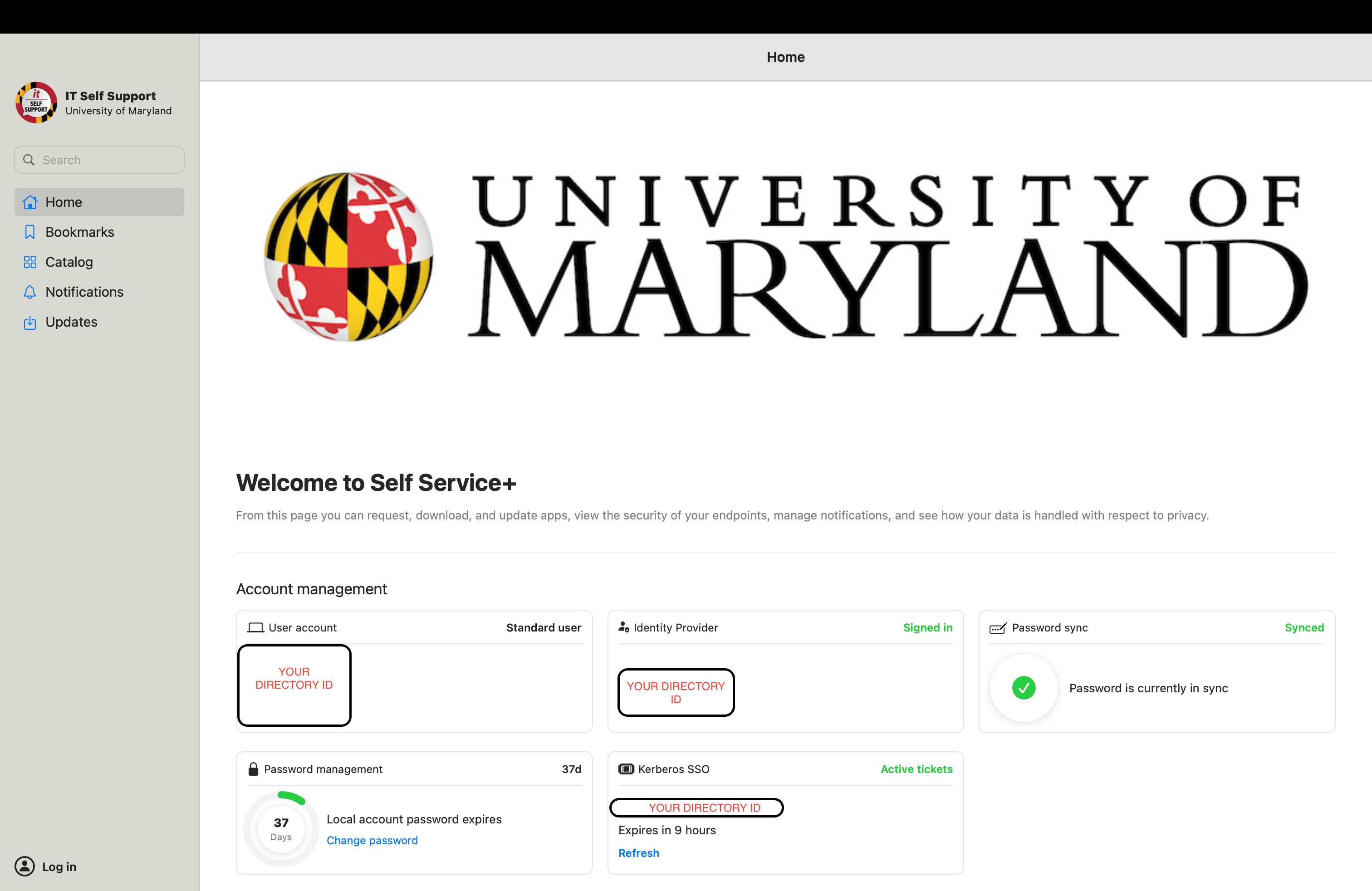
- The Password sync section should now show a green check and a message such as “Password is currently in sync.”
- Under Account management, your User account and Kerberos SSO tiles should show your Directory ID and a normal status (no red warnings).
If your screen looks like the final screenshot (green “Synced” status), your password is now correctly synced between your local Mac and your UMD account.