
How to: Log in to the Music Computer and Use 7 Point Audio
(The .\MKTG-MUSIC user is no longer available. All users must now log in with their UMD credentials.)
This guide explains how to log in to the Athletics music computer with your UMD credentials and correctly use the 7 Point Audio application. Following these steps ensures that all music files are accessible to every user who logs in.
1. Logging in with Your UMD Account
- Turn on the music computer.
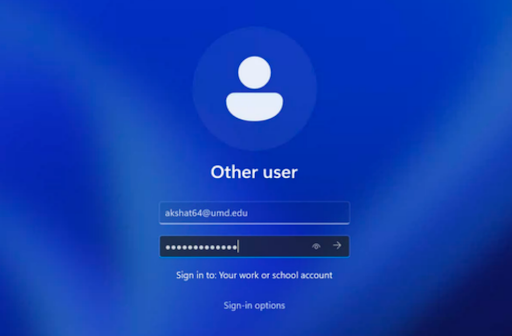
- On the login screen, select Other user.
- Enter your UMD credentials:
Email address: your @umd.edu email
Password: your UMD account password
2. Desktop Shortcuts
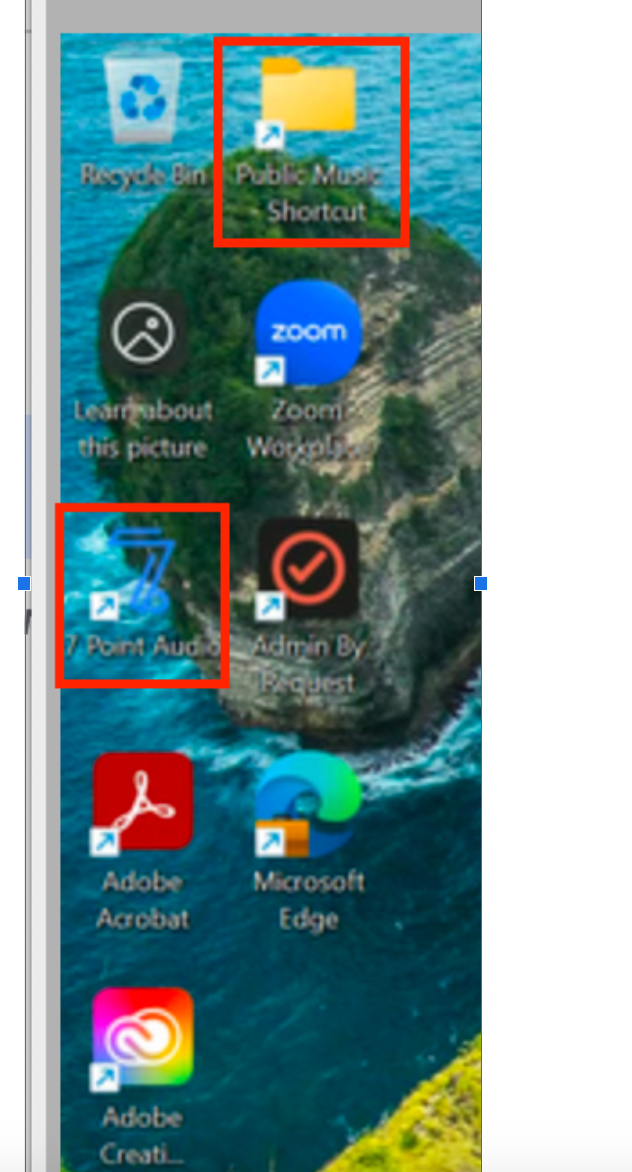
After logging in, you will see two important shortcuts on the desktop:
- 7 Point Audio
- Public Music – the shared music folder accessible by all users.
3. Saving Music Files (IMPORTANT)
To ensure every user can see and play the music:
- All music files from now on must be saved in the shared Public Music folder.
- Path: C:\Users\Public\Music
If files are stored anywhere else (e.g., your personal Downloads or Music folder), other users will not be able to see or play them in 7 Point Audio.
4. Importing Music into 7 Point Audio
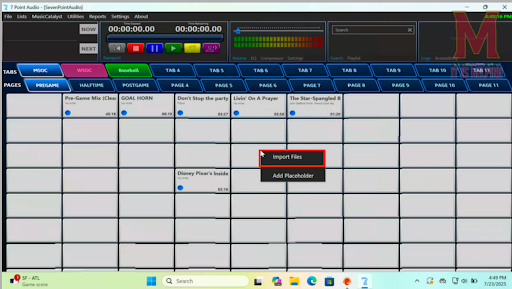
- Open 7 Point Audio.
- Right-click on any empty button in the interface and select Import Files.
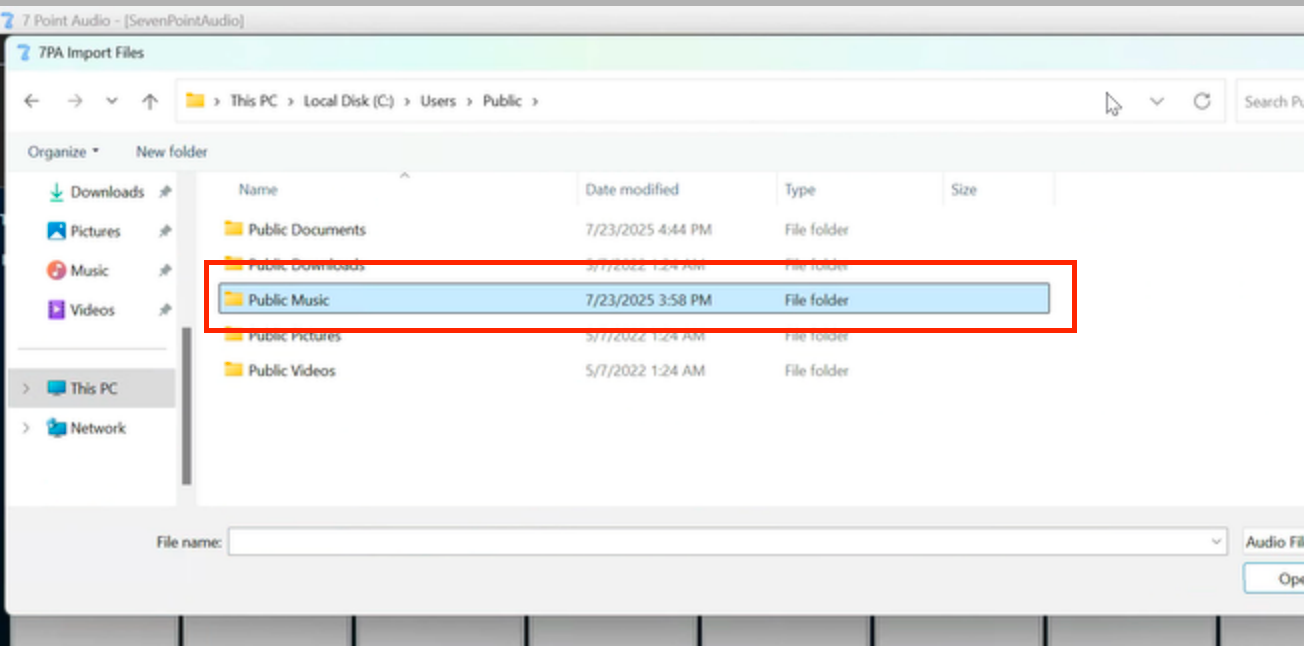
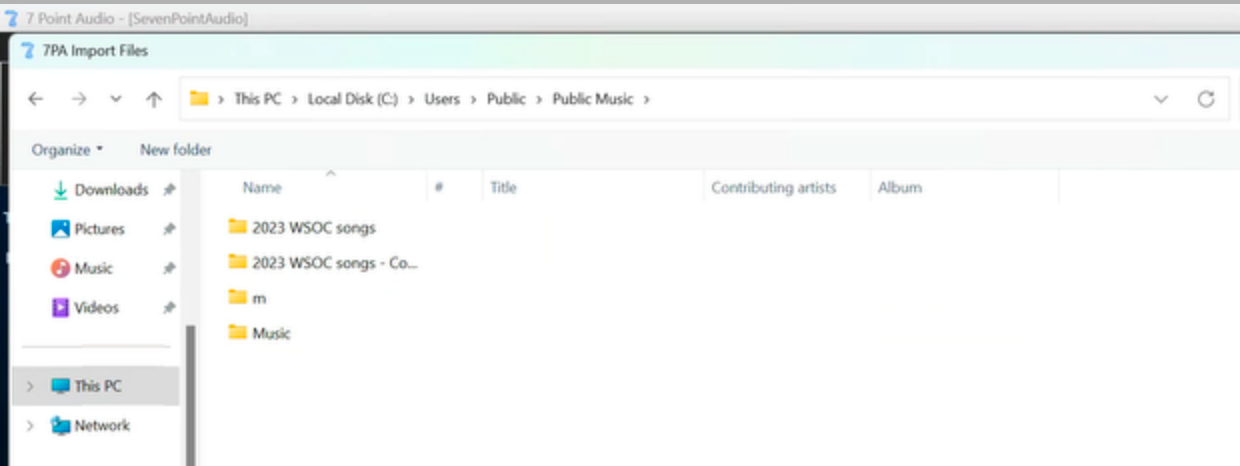
Browse to the Public Music folder: C:\Users\Public\Music
Select the files you want to import.
5. Public Music Folder - File Organization
Inside the Public Music folder, you will see shared subfolders (e.g., game-specific or event-specific). Save all music files here.
6. Common Issues
If you save files anywhere other than the Public Music folder:
- Other users won’t be able to see or play them.
- 7 Point Audio will show an error such as “No music found.”
Always double-check that your files are in the Public Music folder before importing.