
What is Make Me Admin?
Make me Admin is a tool for your Athletics managed Dell computers to elevate your role to administrator. You will no longer need to wait for approval for the admin requests for this campus managed platform.
By default your account is a standard user to protect the computer from accidentally downloading malware, so you will need to elevate your role before downloading most apps or changing some settings.
Requesting Admin Privileges
Step 1 - Open Make Me Admin
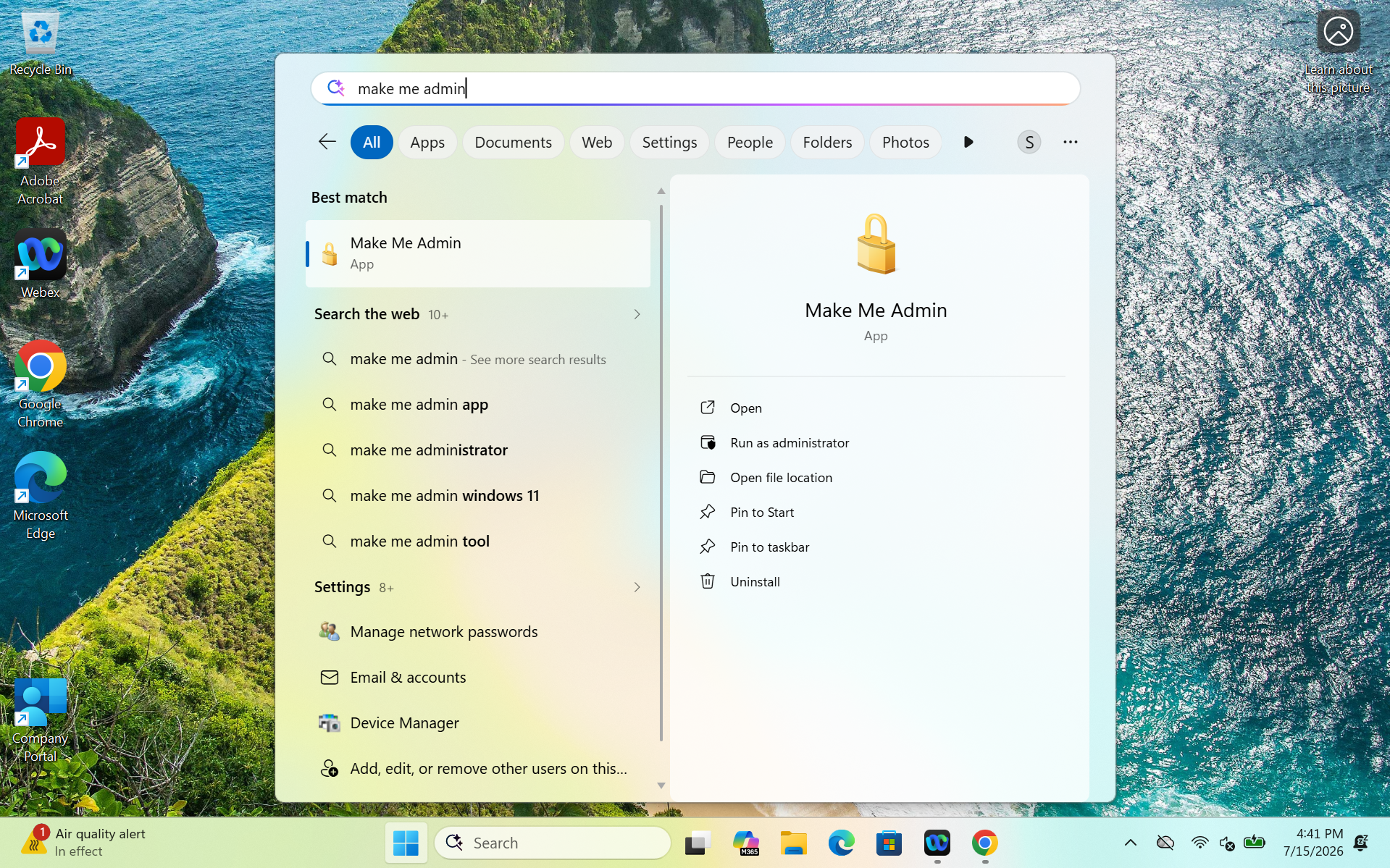
To get to the Make Me Admin application first open the search box by pressing the windows button or clicking the search bar in the task bar. In the search box type in "Make Me Admin" and click on open.
Step 2 - Elevate Privileges
After opening the Make Me Admin application click on the option that says "Grant Me Administrator Rights" to elevate your role.
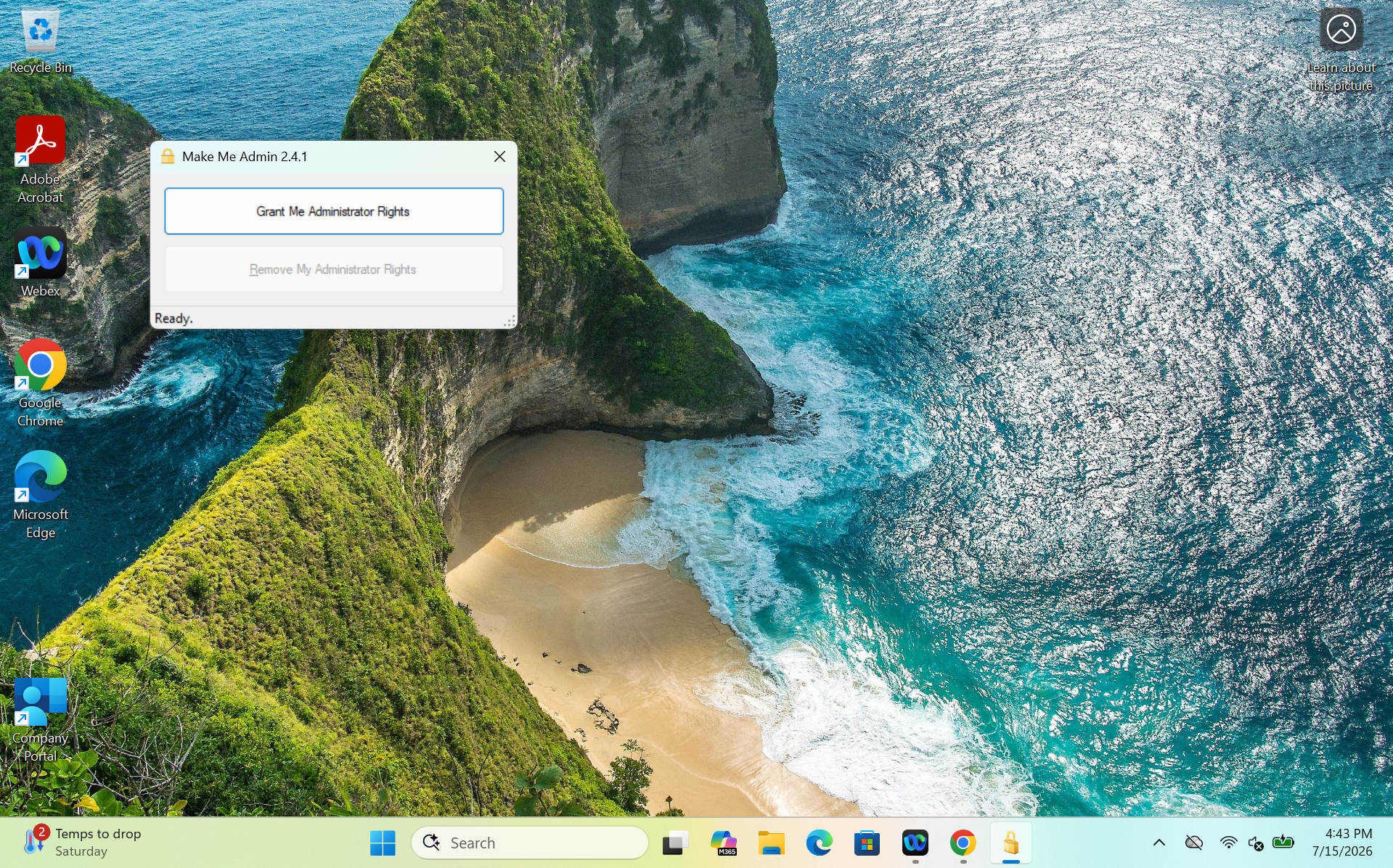
After elevating your role you will see a pop up saying you are now a member of the administrators group. After you see this you will be able to download the app or change the setting you need. You will have 15 minutes before your role with automatically be reverted to a standard user.
Step 3 - Remove Administrator Role
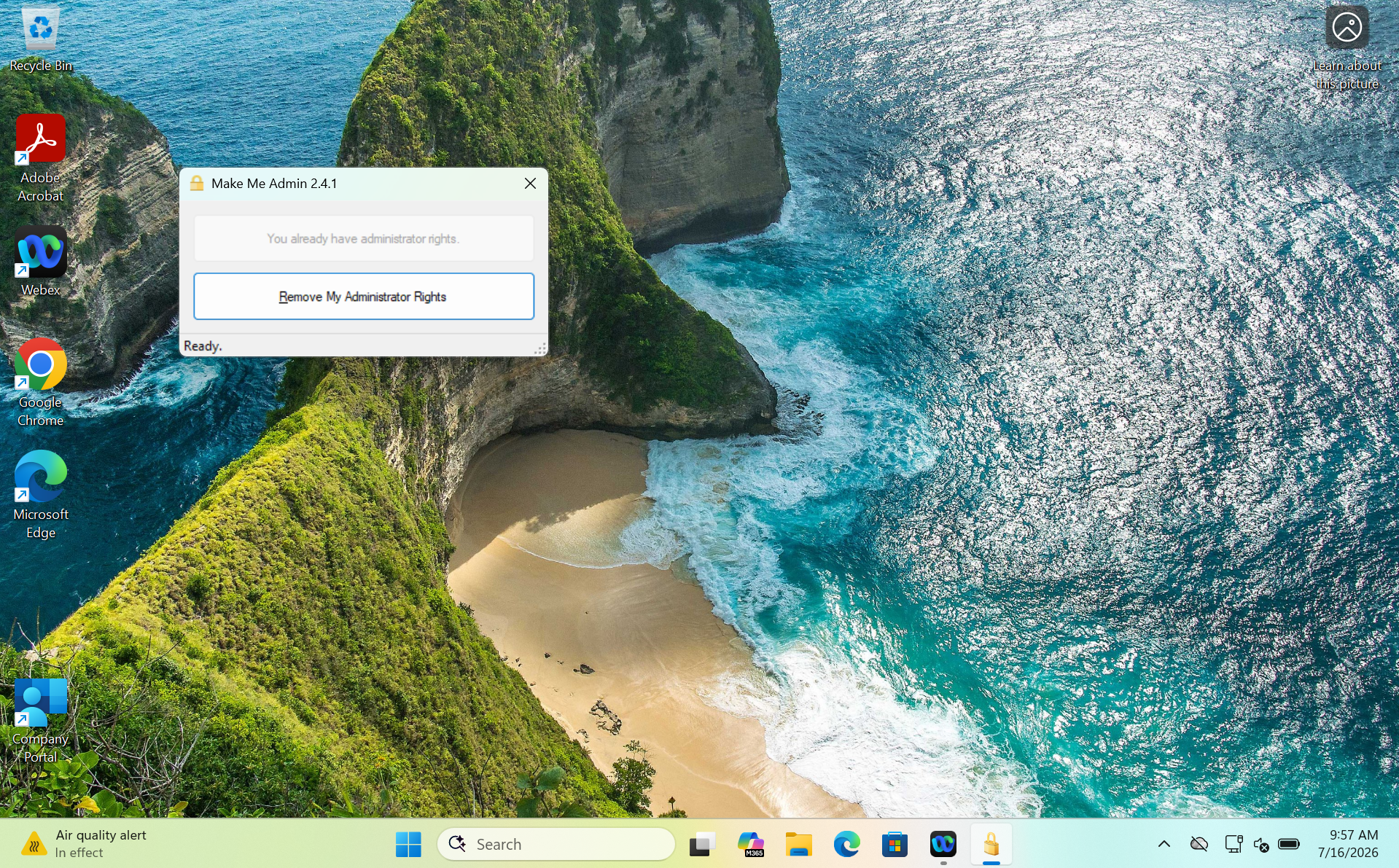
Once you are done using admin privileges you will need to remove the administrator rights from your account. To do this you will need to open Make Me Admin again and click on the "Remove My Administrator Rights" button.
Good to Know
- Elevation events are logged. Requests are recorded for security and audit purposes, consistent with DIT policy.
- Nothing about your account changes. Your password, files, and settings are untouched — Make Me Admin only adjusts your rights temporarily.
- Best practice: stay a standard user for day-to-day work (email, browsing, documents) and elevate only when a task requires it.
Need Help?
If Make me Admin isn’t working, isn’t installed on your Windows computer, or you’re unsure whether a task needs admin rights, contact athleticsit@umd.edu. We can assist via remote session or in person at the Athletics IT office.