
What is Privileges?
Privileges is a self-service tool on your Athletics-managed Mac that lets you temporarily grant your account administrator rights — no ticket or prior approval needed. It is the macOS counterpart to the campus-managed Make Me Admin platform and is deployed and managed by Athletics IT through Jamf.
By default, your account runs as a standard user. This is intentional — it protects you and the department from malware and accidental system changes. When you need admin rights (for example, to install software or change certain system settings), use Privileges to elevate your account, then revert when you’re done.
Requesting Administrator Privileges
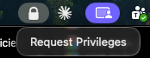
Step 1 — Open Privileges from the menu bar.
Click the padlock icon in the menu bar (top-right of your screen) and select Request Privileges. A closed padlock means you are currently a standard user.
Step 2 — Authenticate.
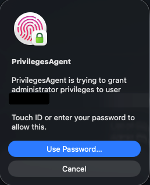
A prompt from PrivilegesAgent will appear asking to grant administrator privileges to your account. Approve with Touch ID, or click Use Password… and enter your Mac login password.
Step 3 — Confirmation.
You’ll see a notification confirming that administrator privileges were successfully granted. The menu bar padlock will now appear unlocked — you have admin rights and can complete your task.

Returning to Standard User
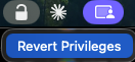
Step 4 — Revert when finished.
Once your task is complete, click the padlock icon in the menu bar again and select Revert Privileges.
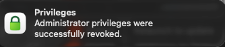
Step 5 — Confirmation.
A notification will confirm that administrator privileges were successfully revoked, and the padlock returns to its closed (standard user) state.
Good to Know
- Privileges expire automatically. Admin rights revert to standard user after 15 minutes, even if you forget to revert manually. Reverting as soon as you finish is still best practice.
- Elevation events are logged. Requests are recorded for security and audit purposes, consistent with DIT policy.
- Nothing about your account changes. Your password, files, and settings are untouched — Privileges only adjusts your rights temporarily.
- Best practice: stay a standard user for day-to-day work (email, browsing, documents) and elevate only when a task requires it.
- More information regarding Privileges can be found HERE.
Need Help?
If Privileges isn’t working, isn’t installed on your Mac, or you’re unsure whether a task needs admin rights, contact athleticsit@umd.edu. We can assist via remote session or in person at the Athletics IT office.