
This article covers how a Maryland Athletics Employee can install and setup mocha software. This software is a terminal emulator used for accessing the IBM mainframe.
Installation
Go to https://www.mochasoft.dk/tn3270.htm and click on download.
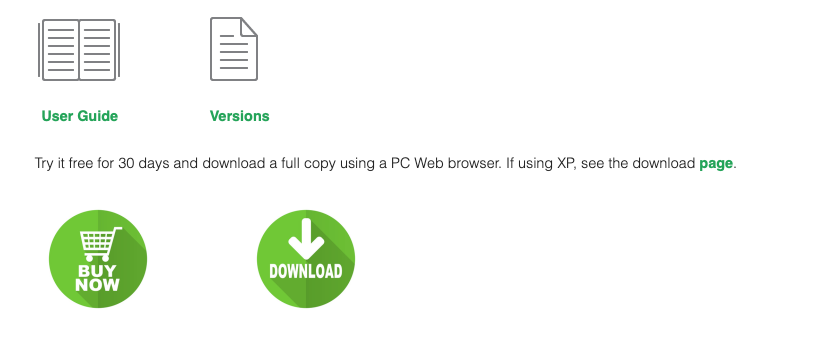
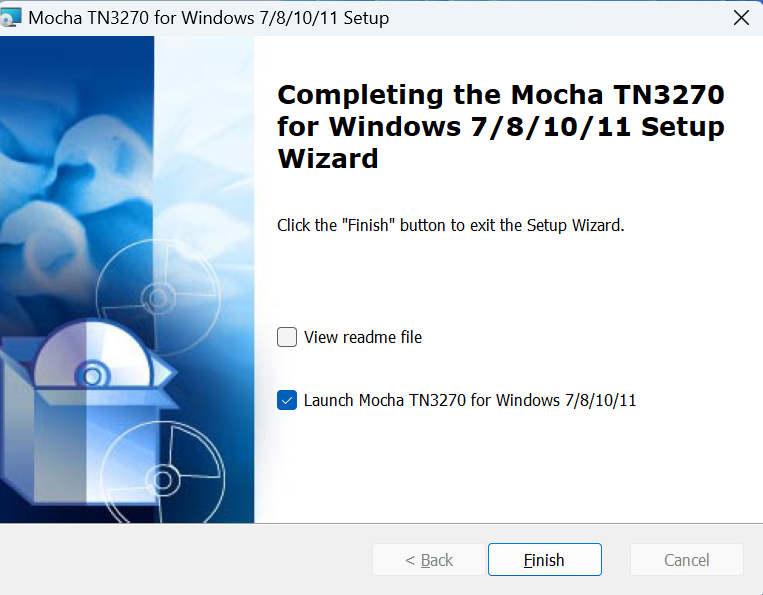
A Windows security pop-up screen will appear. Click on the Run button. With the subsequent prompts click Next and finally click Install. On the last prompt check the box ‘Launch Mocha TN3270 for Window’ and then click the Finish button.
At the top, click on Tools/License and Enter the following information:
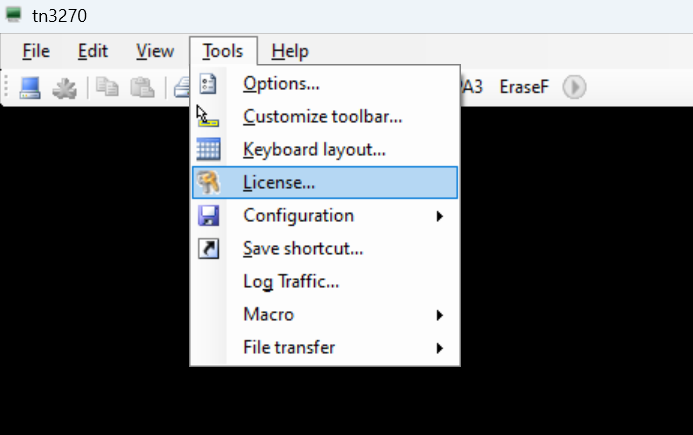
- Product licensed to: University of Maryland, Division of IT
- License key: Check Email from Secure Share for License Key
- Select OK after entering the information
- At the top click on Tools/Options… Then click on the Color tab. Set the Blue color to the color turquoise and set the Turquoise color to the color blue. Click Apply.
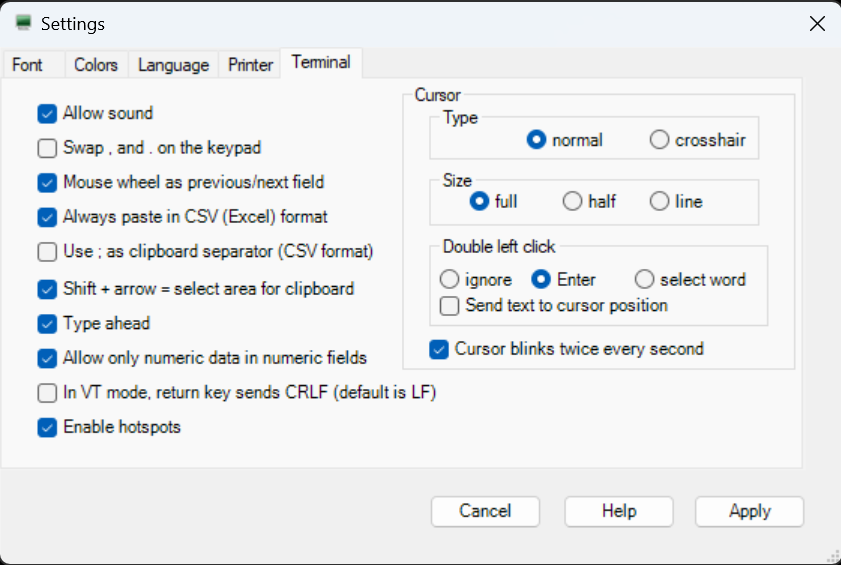
- At the top click on Tools/Options… Then click on the Terminal tab.
Check the box next to ‘Cursor blinks twice a second’ and click Apply
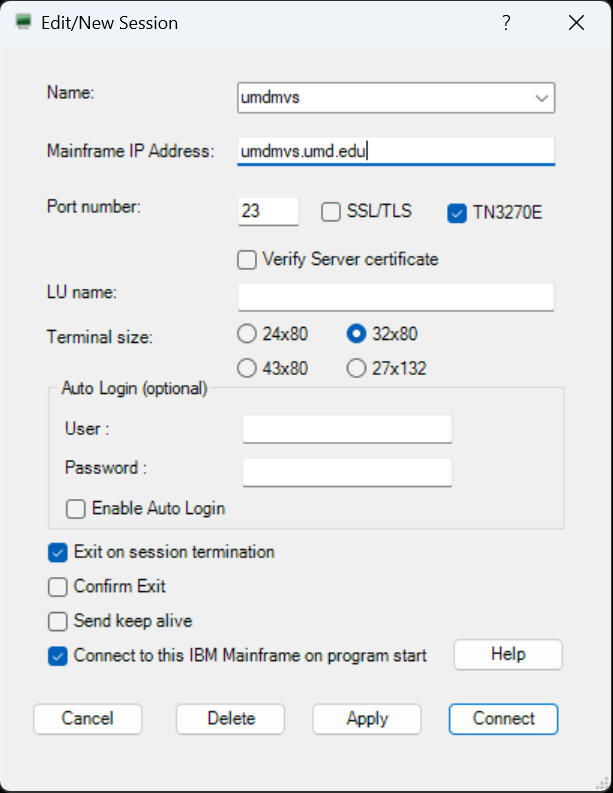
- At the top click on File/New Session... Enter the following information:
- Name: umdmvs
- Mainframe IP Address: umdmvs.umd.edu
Check the boxes for 'TN3270E', ‘Exit on session termination’ and ‘Connect to this IBM Mainframe on program start.’ Click Apply followed by Cancel.
- At the top click on File/Exit.
- To start a mainframe terminal session
- You need to be logged on to the VPN.
- Double-click on the new Mocha TN3270 icon located on the desktop.
Use your 6 character mainframe userid to logon.
If you receive the following message or a blank screen when logging on,
"Sorry, cannot create a connection to the selected IBM Mainframe."
- Confirm you are connected to the VPN.
- If you are on the VPN and access has already been set up, please contact the DIT Service Desk (itsupport@umd.edu) to be connected to the vpn telnet group. The Service Desk will redirect your request to the group who can fix the issue.