This article covers the setup of a speed dial for a physical desk phone and transferring calls from the Webex client for PCI compliance.
Overview:
This article will walk through the steps of how to set a speed dial to a PCI iPhone for the purposes of transferring a call when Credit Card information is shared from a customer. Before any card information can be taken/inputted into Paciolan, you must transfer the call to the iPhone’s cellular number. You can choose to finish the call from the cellular line or transfer the call back to your desk phone.
Setting Up Your Speed Dial:
- Log in to the Cisco IP Phone Self Care Portal. *NOTE: If you are having issues with authentication, try connecting to the GlobalProtect VPN prior to visiting the portal.
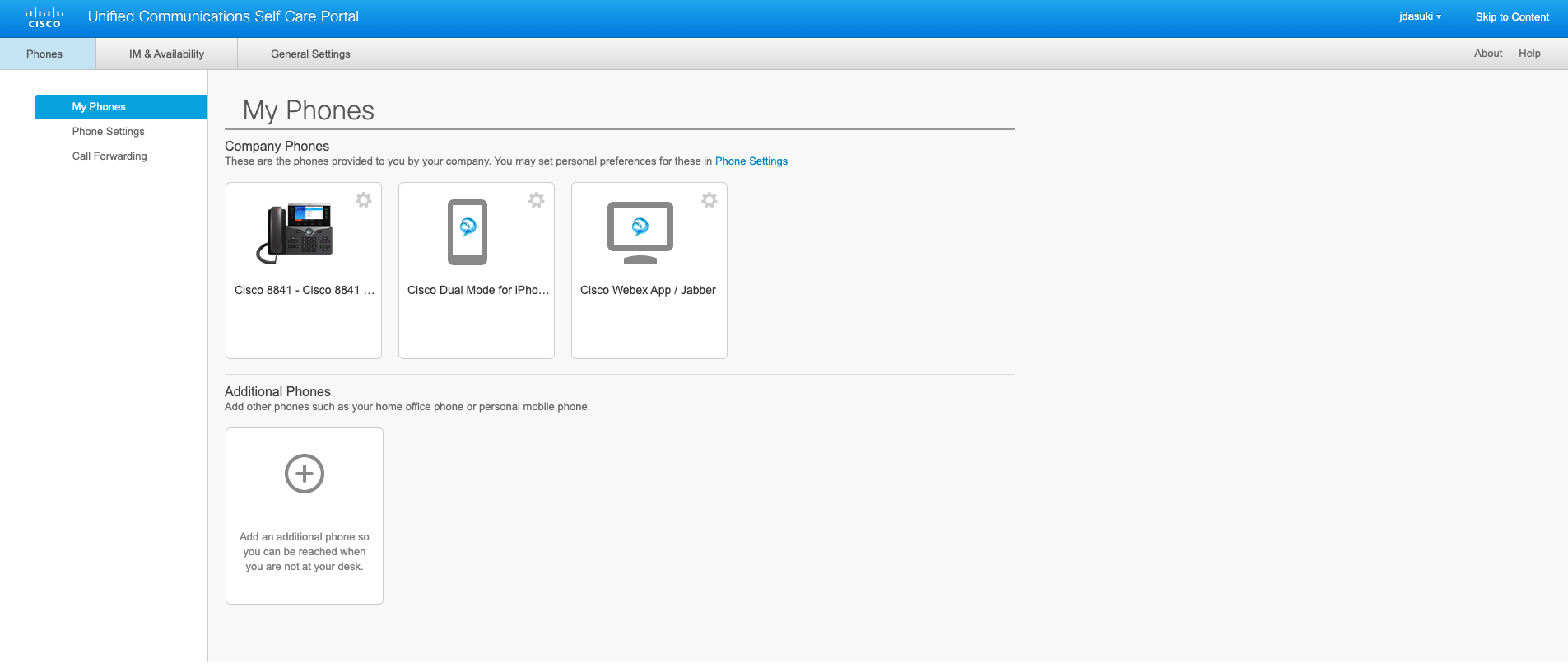
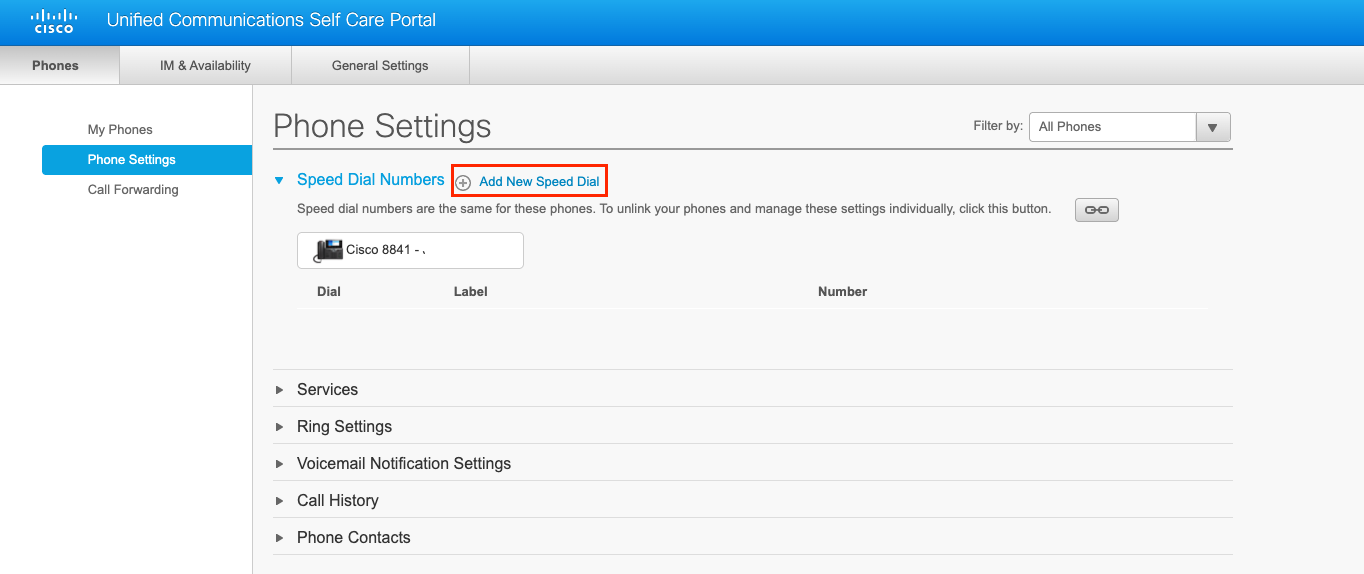
- From the Phones menu, select Phone Settings -> Add New Speed Dial
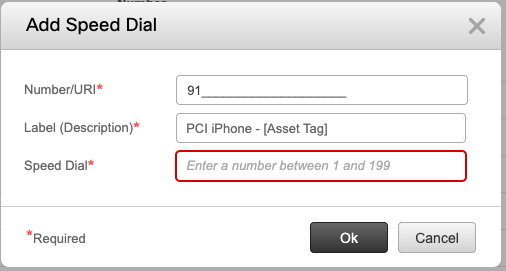
- In the Add Speed Dial Menu, input the following for each field:
- Number/URI: 9 + 1 + [Your 10-digit phone number of iPhone]
- e.g. 913013147264
- Label (Description): “PCI Phone - [Your 10-digit phone number of iPhone]”
- Speed Dial: This can be configured to your choosing. Select a key that you will remember.
- Select Save to save the speed dial
- You should now see your iPhone cellular number listed along with your selected speed dial number and custom label
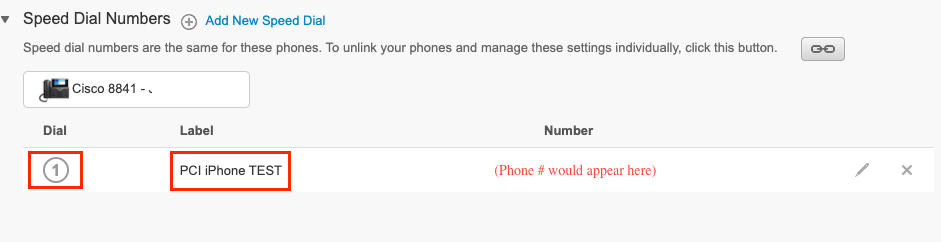
- ***You can also verify this was successful by seeing your label on your physical desk phone appear
- Number/URI: 9 + 1 + [Your 10-digit phone number of iPhone]
- You can use this same settings page to change speed dial number, label, or phone number associated.
Transferring a Call to a Speed Dial (From Physical Desk Phone):
- Now that the speed dial has been created, transferring a call to the iPhone is very simple to do.
- When a transfer needs to be initiated, press the Transfer button

- *NOTE: The call must not be on Hold
- From the Transfer menu, select Speed Dial
- Should be the right most button on the deskphone next to Active Calls (see red box below)
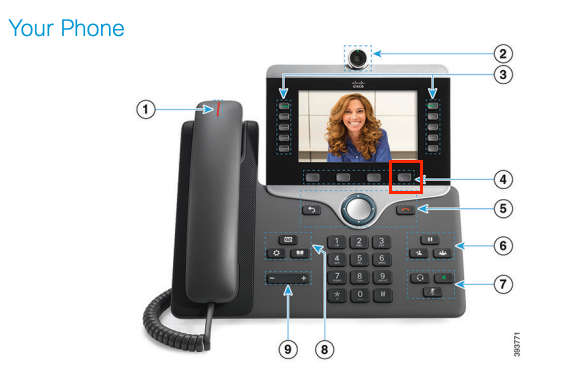
- Once Speed Dial is selected, select the speed dial by selecting the dial number corresponding to the PCI iPhone
- When Call is selected, the PCI iPhone cellular line will start ringing. Accept the call via the iPhone
- Once the call is accepted on the iPhone, ensure you select Transfer from your desk phone to complete the transfer of the call
- You are now authorized to take credit card information over the phone
Transferring a Call to Dedicated PCI iPhone (Using Webex Softphone Client):
- Transferring a line through the Webex client is synonymous to transferring any line. Speed dials do NOT apply and are not used in the Webex client
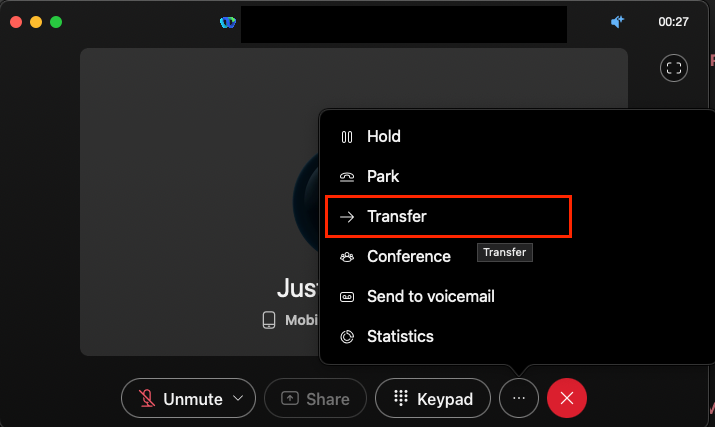
- Select the ellipses -> Transfer
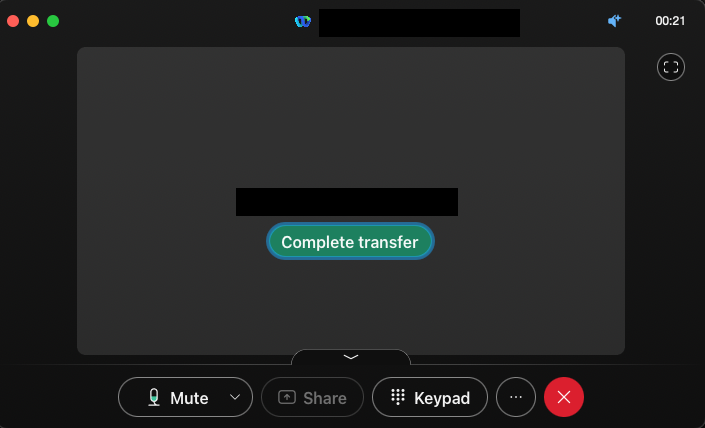
- Dial 9 + 1 + 10-digit phone number of the dedicated PCI iPhone cellular number. Select Complete transfer
- The call is now transferred to the iPhone. You are now able to obtain PCI-related data over the cellular phone