
Overview
Admin elevation platforms are normally deployed automatically to your Athletics-managed device through your platform's management system — Jamf for Macs and Microsoft Intune for Windows PCs. If it hasn't appeared on your machine yet, you don't have to wait for the automated policy — you can install it yourself on demand through your device's self-service portal:
Mac users: install through Self Service+, the University's IT Self Support app.
Windows users: install through the Company Portal app.
This guide covers the manual installation steps for both platforms. Follow the section that matches your device. The whole process takes less than a minute. If the instructions outlined in this document do not work for you, please start a conversation with us by emailing athleticsit@umd.edu for further assistance.
Privileges (MacOS ONLY)
Step 1 — Open Self Service+
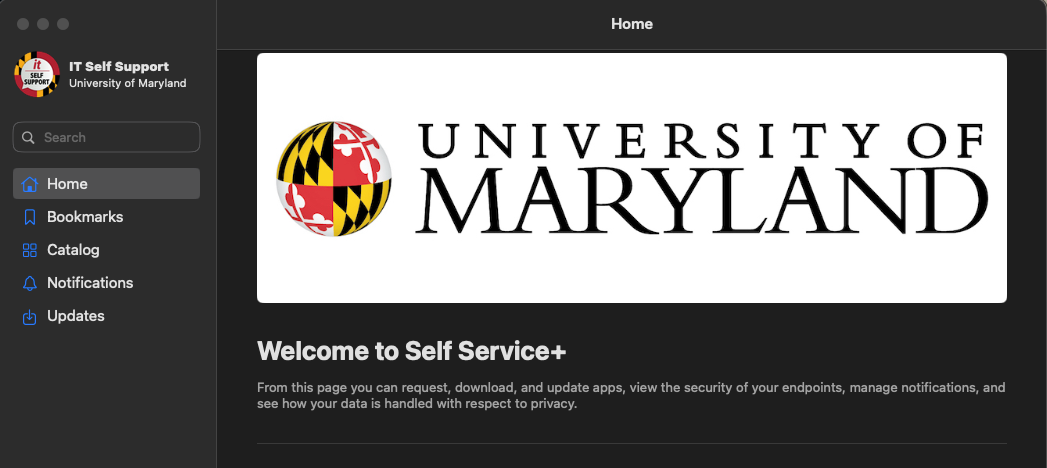
Locate and open the IT Self Support app (Self Service+) on your Mac. You'll typically find it in your Applications folder or via Spotlight search (⌘ + Space, then type "Self Service"). The Home screen displays the University of Maryland banner and a welcome message.
Step 2 — Search for Privileges
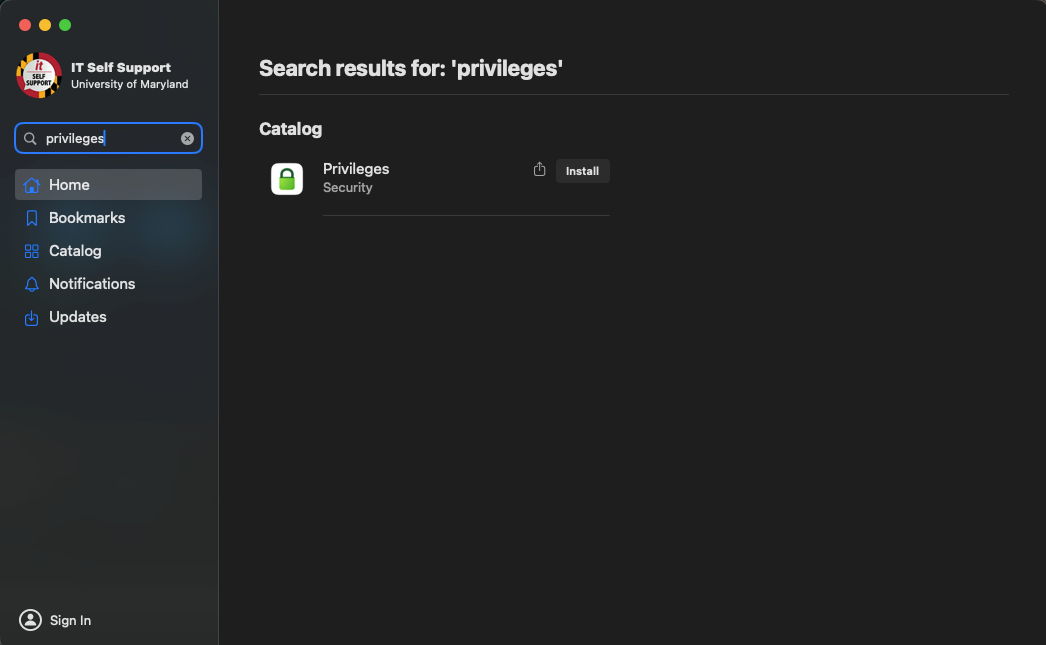
In the Search box at the top of the left sidebar, type privileges. The results will display a Catalog entry named Privileges, categorized under Security. Click the Install button to the right of that entry.
Step 3 — Confirm the installation
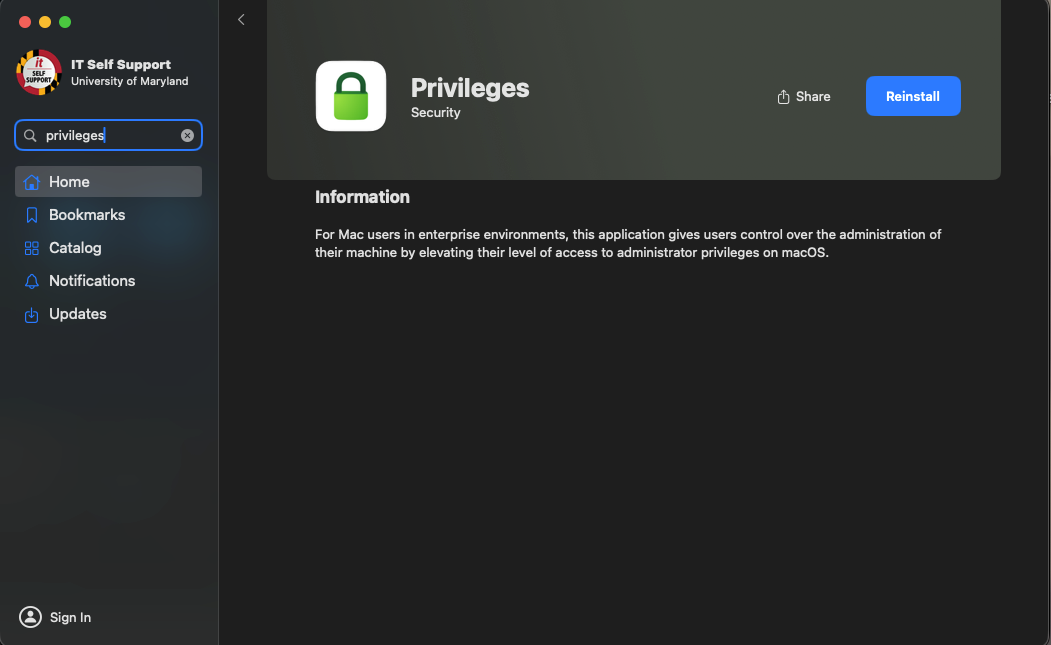
Once installation begins, the button changes and the app's detail page becomes available. The Information section describes Privileges as a tool that lets Mac users in enterprise environments control their machine's administration by elevating their access to administrator privileges on macOS. When the button reads Reinstall, the installation is complete.
More information regarding Privileges on MacOS can be found HERE.
Make Me Admin (Windows/PC ONLY)
Please submit a request to athleticsit@umd.edu for support on how to install this application on your work-issued device.